


Search Website

Print, Copy, Scan
Learn more about using printing, copying, and scanning at the libraries.
Print, Copy, Scan
Learn more about using printing, copying, and scanning at the libraries.
Print, Copy, Scan
Learn more about using printing, copying, and scanning at the libraries.
You can print, copy, and scan at all our library locations. To print or photocopy documents, you’ll need to set up a PaperCut account. Scanning is free.
Help with Printing
Print instructions differ based on the device you’re printing from, if you’re a member of the Western community or a visitor, and file size. For files larger than 15 MB, you must use Web Print.
- Log in at any print station using your PaperCut ID. It will be held in the print queue for three hours.
- Select "Print All" to print all jobs or "Print Release" to view a list and "Print" or "Delete" individual jobs.
To review your account balance, select "Access Device". Select "Home" to return to the Print Release page.
Select "Refresh" if any recently uploaded files have not yet appeared in your list.
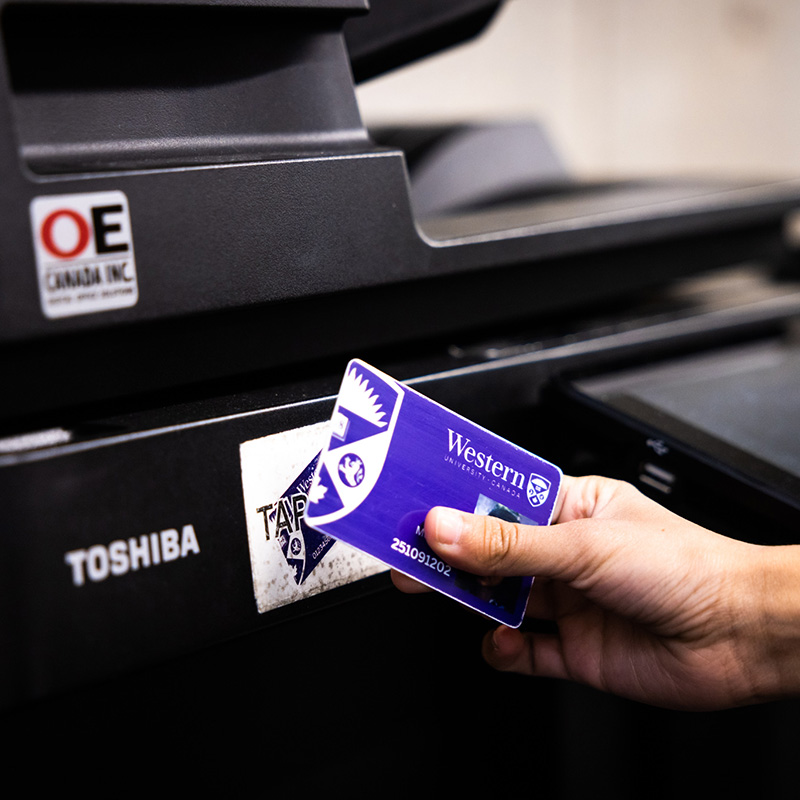
Western students, faculty, and staff may log in to print station by tapping their Western ONEcard.
- Place your Western ONEcard over the tap device on the print station.
- Log in to the pop up screen on the printer using your Western ID.
- Press “Associate Card.”
Your PaperCut account will now be linked to your Western ONECard and you can tap to print.
PaperCut
PaperCut is your print service on campus. Whether you’re on or off campus, you can submit a print job to be picked up from any of our library locations.
WebPrint
Web print allows you to upload documents up to 25 MB in size from any browser or device. Documents sent using Web Print are printed as is; print properties can’t be changed.